When contacting customer support, it's often helpful for us to have a copy of a VCM Suite Infolog. The Infolog must be generated while connected to your vehicle.
Generating an Infolog
| 1. | Click the VCM Suite Info button in either VCM Editor or VCM Scanner. |
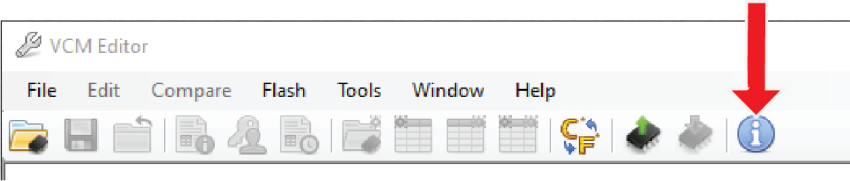
NOTE: make sure your cable is connected to the vehicle and the vehicle's key is in the ON position before proceeding.
| 2. | Click the blue circle "i" icon to poll the software and the vehicle. |
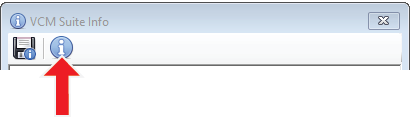
NOTE: This step may take five to twenty seconds to complete.
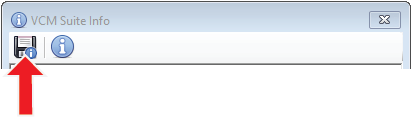
| 3. | When Infolog generation is finished, click on the Save icon. Once the file is saved, it is ready to email to our Support team. |
Sending An Info Log For TDN Users
To send an Info Log to our support staff for TDN Users:
| 1. | Turn the vehicle key to the on position. |
| 2. | Connect your MPVI4 to the vehicle. |
| 3. | Tap the TOOLS icon to open the Setup / Tools Menu. |
| 4. | Select Gather Info Log for Tech Support. Info Log Screen appears, Tap GOT IT. |
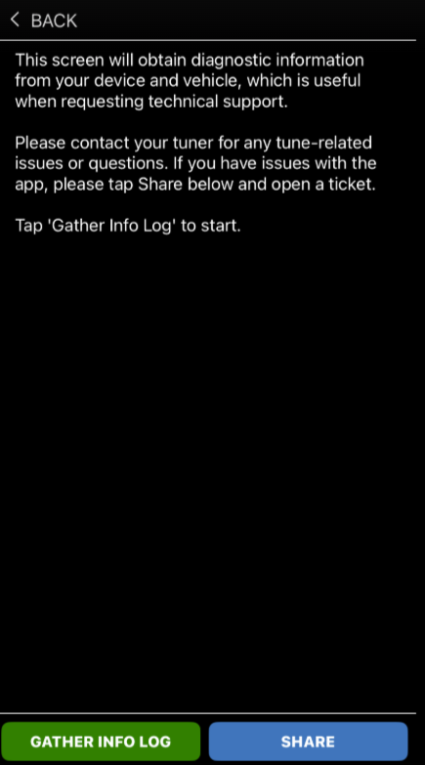
| 5. | Tap the GATHER INFO LOG button. The app will begin gathering the Info Log. |
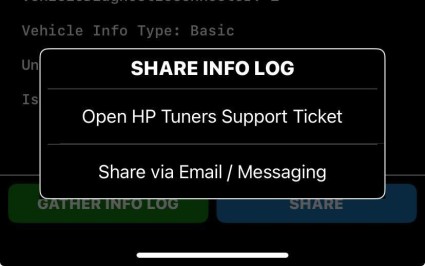
| 6. | When the app has finished gathering the Info Log, tap SHARE to email the log to customer support. |